Announcing a New Phone System: Crexendo at Drew
The Technology team is deploying a new phone system to replace our current Mitel system, which has reached the end of its supported lifetime. This will be happening in September 2026.
This page will continue to be your landing page for information about both the Mitel system and the Crexendo system during this transition period.
As we work through the implementation of the new phone system, you will see parts of this page changing. Please be patient as we update everything.
Replacing the Mitel IP485G with a Yealink T33G
Don't worry, we won't ask you to remember those phone models.
Please click on the thumbnail below to view it larger, or see the PDF at https://drive.google.com/file/d/1Vz9wfb3ZPyNLPZJvly-8-TorXS6lXHge/view?usp=sharing.
Crexendo Welcome Emails

Crexendo gives us the option of managing some features of our Drew phones via an online portal. For the most part, you will only visit this portal when first setting up your account.
You will receive an email from no-reply@crexendovip.com titled "Your new phone system account".
This email tells you the login name for the portal, which extension you are assigned, and provides a link to "Complete Setup" on the portal.
Follow that link (within 48 hours of receipt) to login with the "Login" provided (your extension @ DrewU) and set a password. This password should be different from your Drew uLogin password. You will also set your voicemail PIN during this setup process.
Reach out to the Helpdesk team if you have difficulty setting up your account or your setup link expires.
Crexendo Links
- Web phone: https://portal.crexendovip.com/webphone
- Online portal: https://portal.crexendovip.com/portal/home
- DREW UNIVERSITY Crexendo VIP Phone System Frequently Asked Questions
- Crexendo VIP User Training
Crexendo VIP Web Phone
Crexendo VIP Portal
Crexendo Voicemail
Setting up Voicemail Options
The voicemail greeting defaults to "Hello, (name) is unavailable. Please leave a message." If you wish to change this, you can follow the directions below.
Desk Phone
- Press the Voicemail button. On the majority of our phones, it is an envelope icon.
- When prompted, enter your voicemail PIN and press #.
- If you have not set a voicemail PIN, you can do so at the online portal.
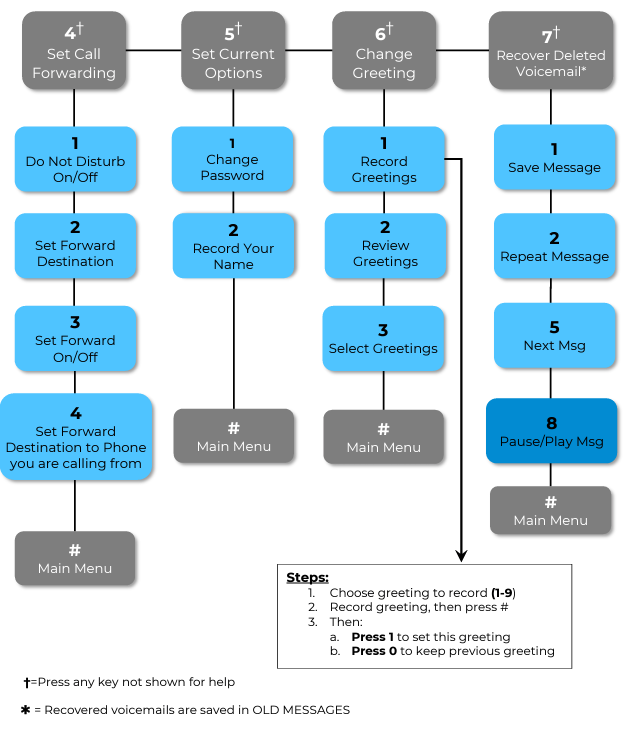
- Press 6 to change greeting (the message that plays when someone hits your voice mailbox).
- 1 Record Greetings
- 2 Review Greetings
- 3 Select Greetings
- #Return to Main Menu
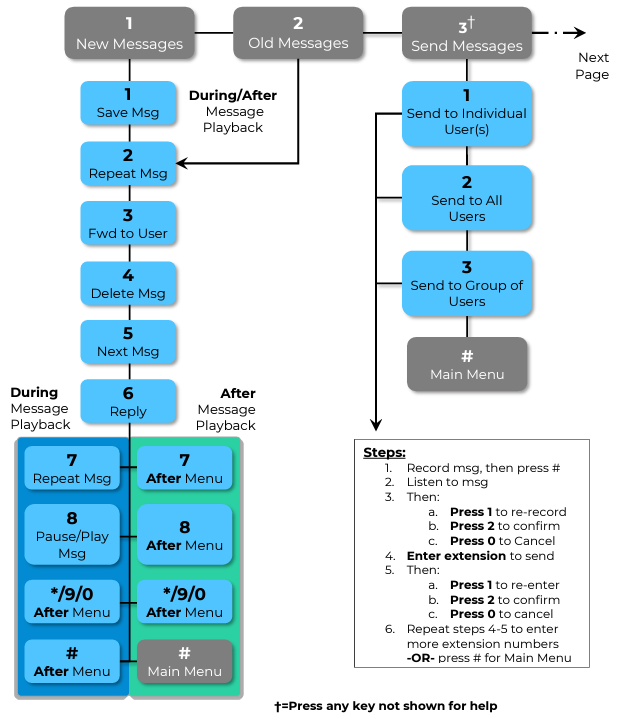
Crexendo provides the following graphics for navigating the voicemail menu at https://www.crexendo.help/en_US/crexendo-user-training/crexendo-guidebook-for-managers-template-copy-309.
Online Portal
- Visit https://portal.crexendovip.com/portal/home.
- Log in (remember, this is not your Drew username and password).
- Click "Messages" along the top (the envelope icon).
- Click "Settings" tab.
- Yes, there is a Chat option. This feature is not supported, so you can ignore it.
- Scroll down to "Greetings".
- Click on the Manage button. It looks like this:

- Click "Add Greeting".
- Make a choice of how you want to make the voicemail greeting. Additional fields pop open for each choice.
- Text-To-Speech: Allows you to type what you want the message to say, what language it is read in (US English, UK English, or Spanish), and what voice you want to read it. You have to type in text for the voice play button to work. Click Save when done.
- Upload: Asks you to name the greeting and Browse your computer for the recording you want to use. Click Save when done.
- Record: Asks you to name the greeting and enter the extension you want called so that you can record it in your own voice. Click Call when ready.
- Click Done to return to the Voicemail Settings.
- Make sure to choose the Greeting you want used in the drop down menu.
- Click Save at the bottom of the page.
You can also follow directions much like those above to record your name.
For More Information
See the DREW UNIVERSITY Crexendo VIP Phone System Frequently Asked Questions or visit the Crexendo VIP User Training website.
This video provides a complete walkthrough as well: How to Use the Crexendo Web Phone (10 minutes)
Transfer a Call
Add a Speed Dial
Basic Troubleshooting
Reporting a Problem or Requesting Services
Please contact us if you are moving so that we can be sure your phone will work.
You can fill out the Technology Needs form or contact the Service Center via any of the methods listed below.
Please reach out to the Technology Helpdesk to report a problem or request a change. This may include an issue with a phone or a voice mailbox, or requests to update a phone line's emergency 911 location, add a line to a phone, or modify phone features.
- Phone: 973-408-4357 (HELP)
- Email: helpdesk@drew.edu
- Web: help.drew.edu
Requests for new hires or changes in technology needs due to a change in position should be submitted by filling out the Technology Needs form, found at tinyurl.com/UTNewHire.
Returning Mitel Phones
Please return any Mitel/ShoreTel phones to the box most convenient for you. We've picked up most of the boxes by now, but you can still find drop offs in the following locations:
- Dorothy Young - Theater Wing, Room 132 (the office, not the lounge)
Ehinger Center - Student Engagement Office
Hall of Sciences - Floor 2 mail room
- Seminary Hall - Maxine Beach Suite, Room 102
You can also bring phones to the Helpdesk in the University Library.
Reviewed 10/5/26