Drew will be discontinuing access to the Google Drive storage associated with alumni Google accounts as of July 1, 2026 (previously planned for September 30, 2026).
Access to Google Photos ended for most Drew Google accounts on April 15, 2026; alumni will lose access to Google Photos on July 1, 2026.
It is possible you did not use either of these services. The instructions below will help you to check and to clean up anything you find.
We recommend using a computer rather than a mobile device to follow these steps.
Although these instructions are written with alumni in mind, they can be followed by anyone with a Drew Google account.
Google Photos
Please note: These instructions can only be followed by alumni. Photos access for other Drewids was disabled on April 15, 2026.
- Make sure you are not currently logged in to any Google account.
- The easiest way to ensure this is an incognito or private browsing window.
- The keyboard combination of Ctrl+Shift+N or Cmd+Shift+N will usually work if you do not see an option for a private or incognito window in the menus of your browser.
- Navigate to mail.drew.edu.
- Log in with your Drew credentials (username and password).
- If you do not remember your password, reach out to the University Technology Helpdesk at helpdesk@drew.edu or 973-408-4357.
- Navigate to Photos after you log in following one of these paths:
- Open https://photos.google.com/.
- OR
- Click on the Google apps grid (the 3x3 square to the left of the Drew logo in the top right) and choose Photos. You will probably need to scroll down to find it.
- Explore what photos, if any, there are.
- The navigation options along the left menu might help you narrow down what you are looking at.
- The Storage link arranges your photos into groups that are easier to review.
- You can select multiple photos at once by clicking on the check mark that appears in the corner of the photo.
- You can download a photo (or photos) to save elsewhere by clicking the download icon.
 or
or 
- If you want to download everything left in your Google Photos storage, see the instructions below for Google Takeout.
- Manually delete content.
- Select all of the content in your Google Photos storage.
- Choose the Trash/Move to trash option at the top right.
- Confirm that you want to move the items to trash.
- Navigate to your Trash folder (at https://photos.google.com/trash) and choose "Empty trash".
- Confirm that you want to empty trash.
If University Technology has to delete your Google Photos content, we will need to reset your password to temporarily access your Google Account. Access will be limited to only the Google Photos service in order to remove the content stored there. Once all content in Google Photos has been removed, you will again be able to access your Drew account after resetting your password.
Google Drive
- Make sure you are not currently logged in to any Google account.
- The easiest way to ensure this is an incognito or private browsing window.
- The keyboard combination of Ctrl+Shift+N or Cmd+Shift+N will usually work if you do not see an option for a private or incognito window in the menus of your browser.
- Navigate to mail.drew.edu.
- Log in with your Drew credentials (username and password).
- If you do not remember your password, reach out to the University Technology Helpdesk at helpdesk@drew.edu or 973-408-4357.
- Navigate to Drive after you are logged in following one of these paths:
- Open https://drive.google.com/.
- OR
- Click on the Google apps grid (the 3x3 square to the left of the Drew logo in the top right) and choose Drive. This icon is usually near the top.
- Explore what files you can delete and which, if any, you wish to save elsewhere.
- The navigation options along the left menu might help you narrow down what you are looking at.
- We recommend working in the "My Drive" area instead of "Home". You can see which area you are in along the top, under the Search bar, or highlighted in the menu on the left.
- The Storage link arranges your files by size. This might be a good way to go through and remove the largest files.
A Recommendation
One recommendation we have for sorting your files is to create a folder of the things you wish to save out to another location (see below for more information on those options).
When you find a folder or file you wish to save, you can move it into your "Keep Me" folder (of course, you don't have to name it that).
When you find something you do not wish to save, you can move it straight into the Trash.
- The navigation options along the left menu might help you narrow down what you are looking at.
- You can select multiple files/folders at once by left clicking on the icon at the start of the group, pressing the Shift key, and then left clicking on the last icon in the group (to select all) or by pressing the Ctrl/Cmd key before clicking on the additional icons you want to include in your selection.
- When you are ready to download files to save elsewhere, you can:
- Use Google Takeout. See the instructions below. You must have all of the files you want to save in a folder to use Google Takeout. Individual files are harder to capture.
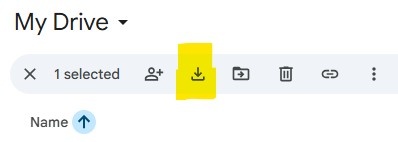
- If you only have a few files or folders, you can choose the download option.
- This will not work if you try to download too much data at once; the download arrow will be grayed out. If you run into this, you can either use Takeout, or you can select fewer files at a time.
You cannot transfer ownership of files between Google domains. This means that you cannot transfer ownership of the files in your Drew Google account to a different, personal Google account. You have to use Takeout or the download options and will need to recreate any share permissions you had set up.
- Manually delete content.
- Select all of the content in your Google Drive storage.
- Depending on how much content you have, it might be easier to do this in bits and pieces rather than all at once, and to use the click+Shift+click further down option to select multiple files/folders.
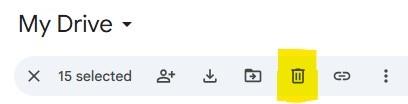
- Choose the "Move to trash" icon (garbage can).
- Confirm that you want to move the item(s) to trash.
- Navigate to your Trash folder (at https://drive.google.com/drive/trash) and choose "Empty trash".
- Confirm that you want to delete forever.
- Select all of the content in your Google Drive storage.
Google Takeout
We recommend deleting any content you do not wish to find a new storage location for before you use Google Takeout.
We've made a (hopefully) helpful step by step for using Google Takeout. Please scroll through the instructions below, one screen at a time, or download the entire PDF by clicking the thumbnail below.