University Technology was excited to launch a new, friendlier interface for our ticketing system in January 2023. Jira Service Desk, commonly referred to as help.drew.edu, the ticketing system or the technology request portal, allows us to collect and respond to questions from the University community.

What is help.drew.edu?
As a Drewid, you may interact with the help.drew.edu ticketing system anytime, day or night, via the website, https://help.drew.edu.
That system is the database that the technology teams use to keep track of every problem reported, computer dropped off, or any other service request made of our teams. help.drew.edu allows us to organize our workflows so that we know the status of every issue we are working on for you, thus enabling us to provide efficient customer service.
As you explore both our documentation and the ticket portal, you will see our mascot, ROBOSQRL (read "robo squirrel").
How do I use the portal to request support?
When you first visit help.drew.edu, you will be prompted to log in if you haven't already logged in. Please log in normally.
The Technology Request Portal is where you will land next.
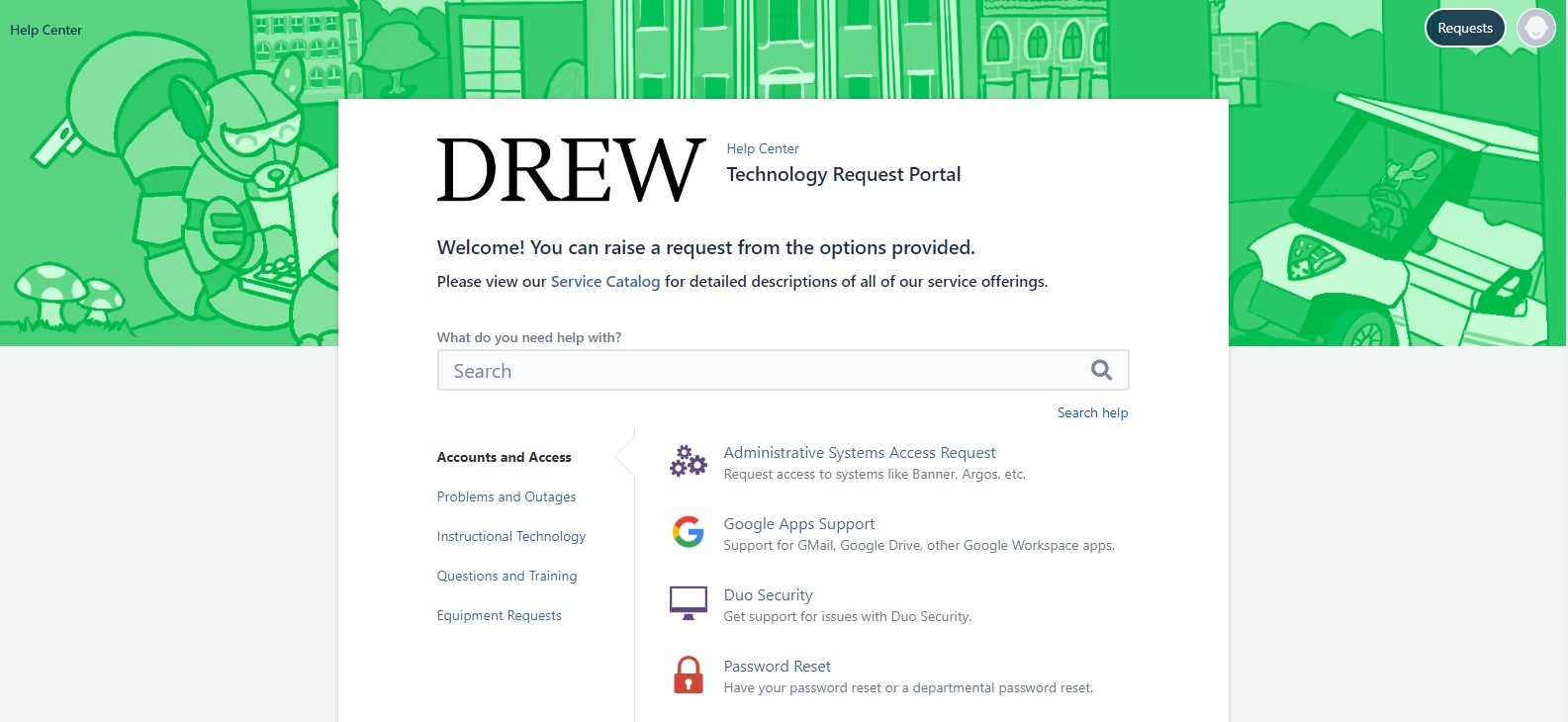
Technology Request Portal
Check out our guide to crafting an effective support ticket!
You will find groupings of some common request types, informed by feedback from the Drew community. You can also use the Search box to see possible matches from our support documentation site, Technology Help and Information, as well as suggested request types.
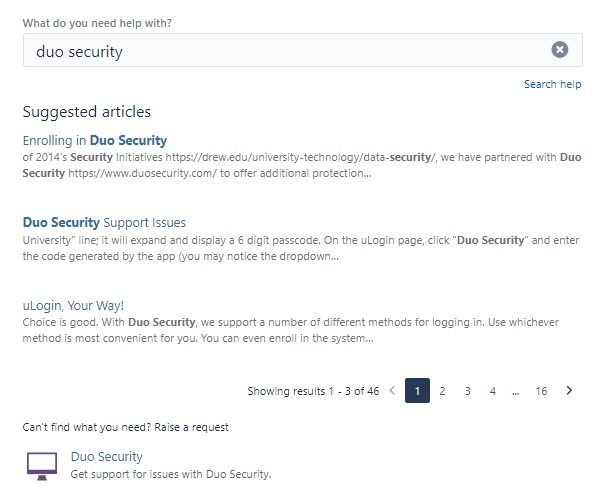
Click on any of the suggested articles to view that page within the portal; there is a link at the bottom to open the page in a new window, as well as the option to tell us whether the article helped or not.
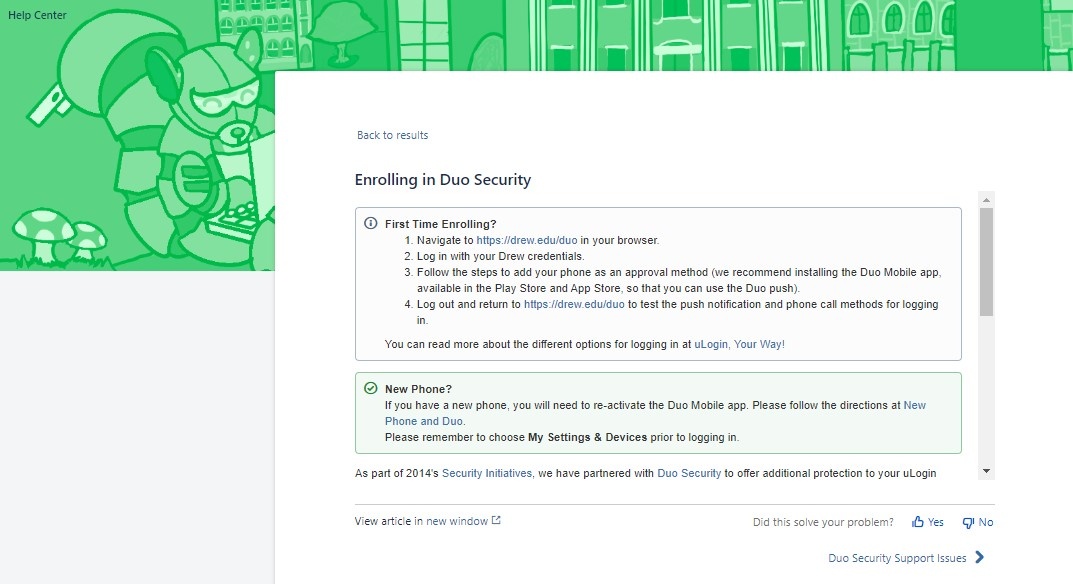
Use the "Back to results" link to refine your search, check other support articles, or to log a ticket (in the language of the software we use, "Raise a request").
Raise a Request
Click on the most appropriate ticket type either in the search results or in the proper category on the front page of the portal.
Different request types will ask you for different information. Please provide as much detail as you can.
In some of these fields, you will see text formatting options that you can use to clarify your request.

Click Create to submit the request.
Finding and Updating Your Requests
Immediately after you log a support request, that request's page will load.
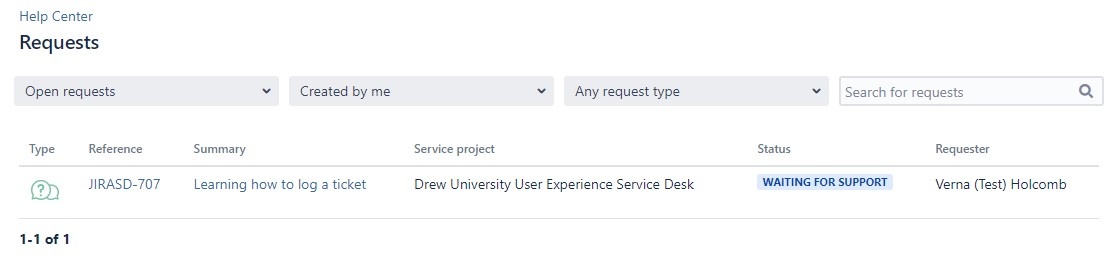
To see your requests at another time, navigate back to the portal at help.drew.edu and click the "Requests" button at the top right.

Choose "My Requests" to see the open tickets where you are the Reporter (ie, "Created by me").
Choose "All requests" to see the open tickets opened by anyone (ie, "Created by anyone"). These include tickets that you have been added to but did not log yourself.
You can change the options in any of the dropdowns so that you can see, for instance, closed requests instead of open ones, or only tickets of the "Application Access Request" type.
Once you see the ticket you want, click on its link in the "Reference" or "Summary" columns.
A very exciting feature of this new software is that you can not only format the text in your ticket updates, but you can easily add a screenshot using drag and drop, pasting, or browsing your computer.
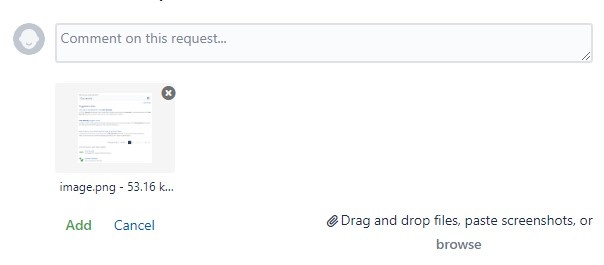
Click the Add button to add your comment.
You can add someone you would like to see your ticket by clicking on the Share link to the right. We recommend typing the email address of the person you wish to add.
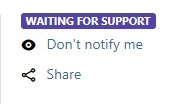
We advise against clicking the "Don't notify me" option.
I can't log in to the portal. What should I do?
If you get an error like "Please ask your Jira Service Management administrator to enable password resets.", ignore the prompt and follow the directions below.
Please save anything you are working on in a browser tab and then clear your cache and cookies.
As browsers are updated, the way you navigate to these options might change. We will do our best to keep these instructions updated but can recommend searching the settings in your browser (most have a search option now, which is very helpful!) for "cookie" to find the clear option.
Search for "Cookies"
Search your browser settings for "cookie" in case the setting recently moved.
Google Chrome (Windows & macOS)
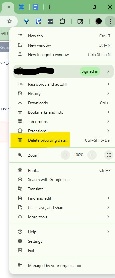
Click the three dots (⋮) in the upper-right corner.
Select Delete browsing data...
Set Time range to All time.
Check:
Cookies and other site data
Cached images and files
Click Clear data.
To ensure changes take effect:
On Windows, close and reopen Chrome.
On Mac, click Chrome in the top menu and select Quit.
Mozilla Firefox (Windows & macOS)
Click the menu button (≡) in the upper-right corner.
Select Settings.
Click Privacy & Security on the left menu.
Scroll to Cookies and Site Data and click Clear Data…
Check:
Cookies and Site Data
Cached Web Content
Click Clear.
Restart Firefox to apply changes:
On Windows, close and reopen.
On Mac, click Firefox > Quit Firefox
Safari (macOS only)
Click Safari in the top menu bar and select Settings (or Preferences, depending on macOS version).
Go to the Privacy tab.
Click Manage Website Data…
Click Remove All, then confirm with Remove Now.
Close Safari by selecting Safari > Quit Safari.
Microsoft Edge (Windows & macOS)
Click the three dots (⋯) in the upper-right corner and choose Settings.
Click Privacy, search, and services from the left menu.
Under Clear browsing data, click Choose what to clear.
Set Time range to All time.
Check:
Cookies and other site data
Cached images and files
Click Clear now.
Restart Edge to finalize the changes:
On Windows, close and reopen.
On Mac, select Microsoft Edge > Quit Microsoft Edge.
After clearing the cache and cookies, please visit TreeHouse (https://treehouse.drew.edu) and log in at the uLogin page, and then go to the following link:
- Technology Request Portal: https://help.drew.edu/jirasd/servicedesk/customer/portal/1
Please ignore any prompts from Service Desk/Atlassian to reset your password. This system relies on your Drew account, so resetting through Atlassian is disabled.
We hope that you enjoy using this ticketing system as much as we do.

Reviewed May 14, 2026