The following instructions require you to have the printer queue name for the network printer. You can get this from someone else in the department that uses the printer (and sometimes you will find the name on the printer itself). The name will include the location, department and model of the printer. The model number is not the queue name. If you cannot get the queue name, please provide us with the model name and location of the printer, as well as what department the printer was set up for. This information can be provided in an existing ticket, by emailing helpdesk@drew.edu, or by calling 973-408-4357 during open hours. You will need to be logged in as an administrator to install a printer. Reach out to the Helpdesk if you are not an administrator on a Drew-assigned machine. Also, your computer should be plugged in to a network cable or on the drew1x wireless network. Please note: Updated Microsoft Security settings in Windows 11 Home prevent you from installing a Drew network printer to your personal computer. There is currently no workaround for this (though we are hoping Microsoft will update their settings soon...). If prompted for a username and password, type "DREW-AD\username" (replacing "username" with your username) and your password. Faculty and Staff should automatically see relevant printers in their department. If you cannot see the printer you wish to install, please email helpdesk@drew.edu with the name of your department and the location of the printer. Finding Printer Drivers You should be on the drew1x wireless network if trying to connect wirelessly. Faculty and Staff should automatically see relevant printers in their department. If you cannot see the printer you wish to install, please email helpdesk@drew.edu with the name of your department and the make, model and location of the printer. Reviewed 10/15/26Step-by-Step Instructions with Pictures
Printer Installation
 , then type "\\offset.drew.lan" and hit Enter.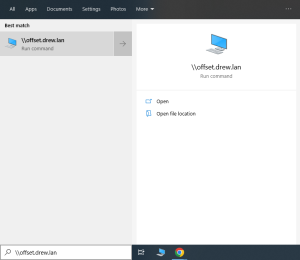
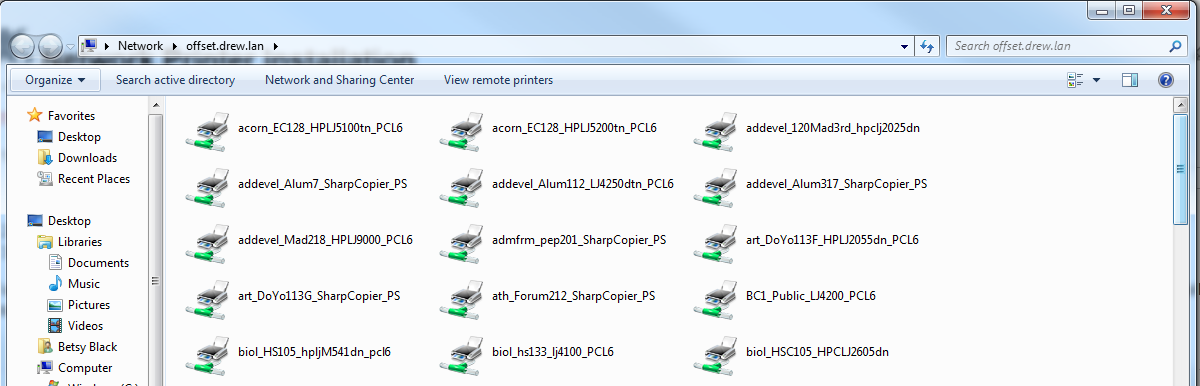
Adding a Sharp Copier on the Drew Network
Overview
Content Tools